
Arrange for Mac
Everything Arrange can do
Arrange shows your iPhone or iPad Home Screen on your Mac and lets you rearrange it with a mouse and keyboard. Here’s the whole tour.
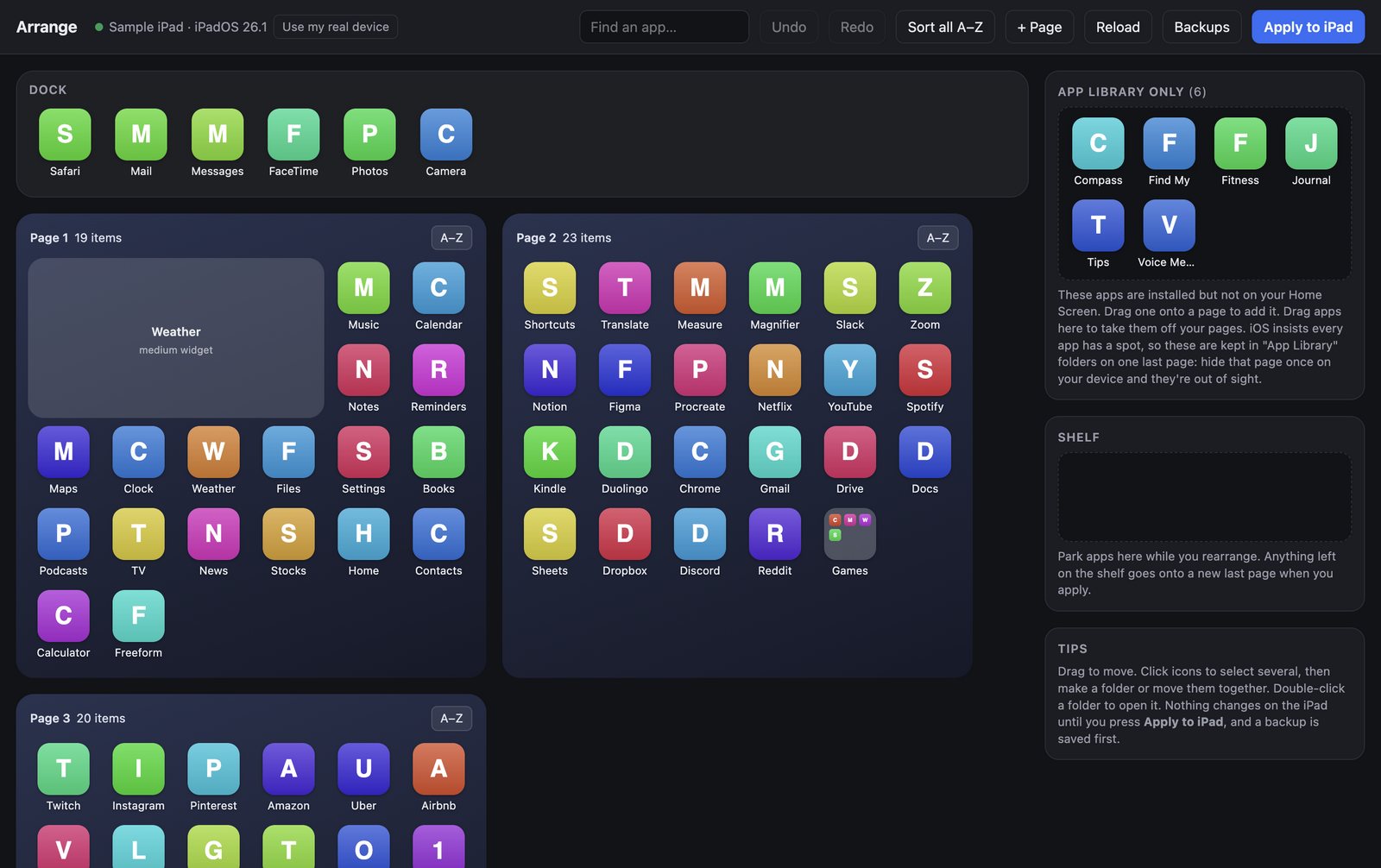
See your whole Home Screen
- Every page side by side
- All of your Home Screen pages and the Dock are laid out on your Mac’s screen at once. No more swiping back and forth.
- Your device’s real grid
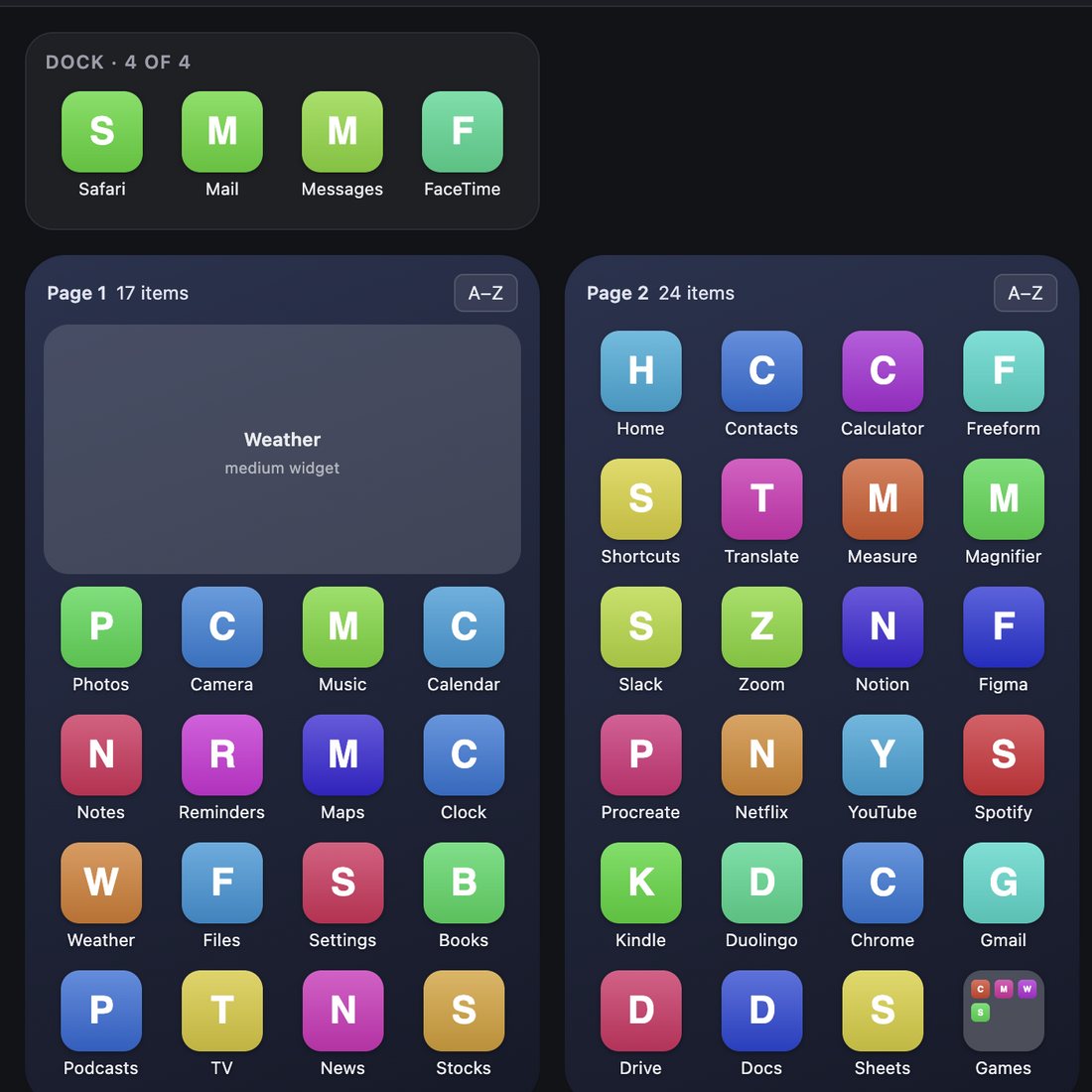
- Arrange detects whether an iPad or an iPhone is plugged in and shows its actual layout: 6 × 5 pages on iPad, 4 × 6 pages and a 4-app Dock on iPhone.
- Find any app
- Search by name to find an app, wherever it’s hiding.
Move a lot of apps, fast
- Drag and drop
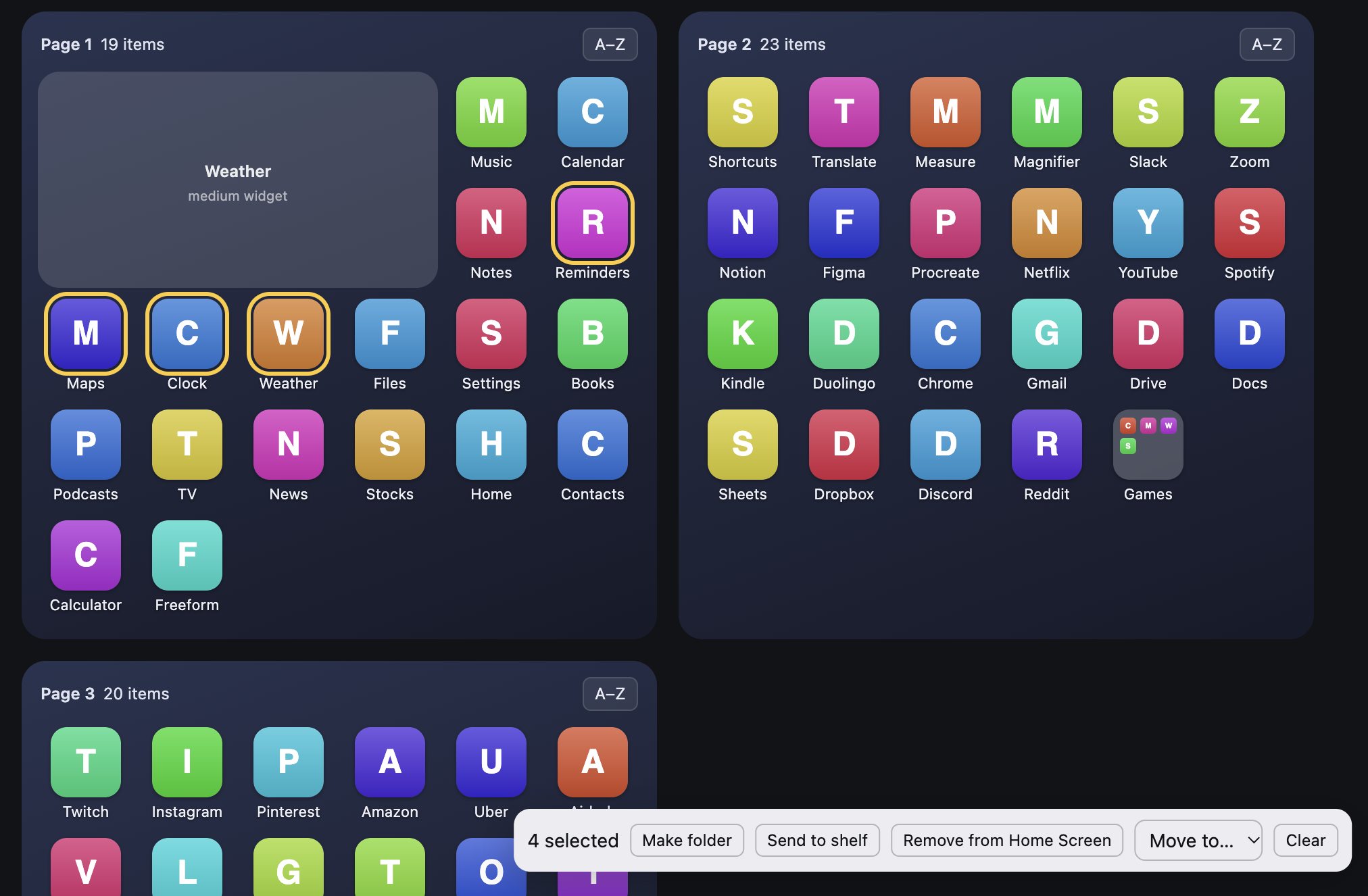
- Drag apps between pages, into and out of the Dock, and into folders.
- Select many at once
- Click several apps to select them, then act on all of them together.
- Move to a page
- Send a selection straight to a page with Move to, without dragging across the screen.
- The Shelf
- Park apps on the Shelf while you plan a page, then place them when you’re ready.
Folders without the fiddling
- Make a folder from a selection
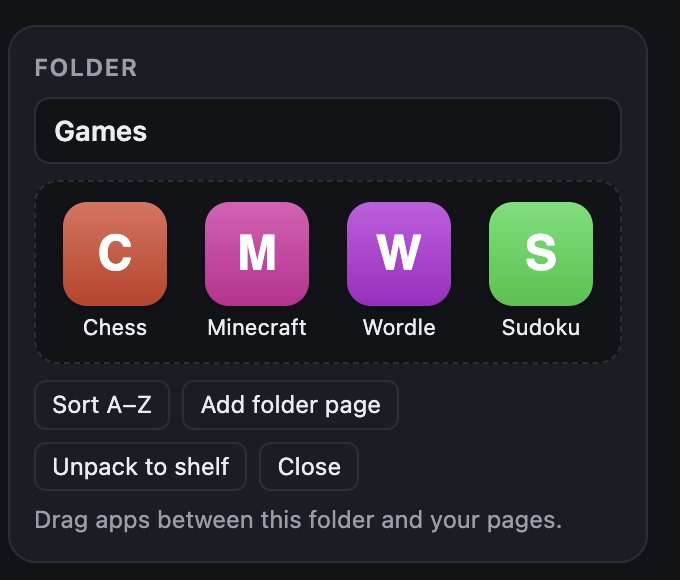
- Select apps and click Make folder. No dragging one icon onto another and hoping.
- Open, rename, sort
- Double-click a folder to open it. Rename it, or sort its apps A–Z.
- Add folder pages
- Add a page to a folder when it fills up.
- Unpack in one click
- Changed your mind? Unpack a folder and its apps go back onto the page.
Tidy up without losing anything
- Sort A–Z
- Alphabetize a folder, a page, or your whole Home Screen.
- Remove from Home Screen
- Take apps off your Home Screen without deleting them. They stay installed in the App Library.
- Undo
- Undo as you go. Nothing on your device changes until you press Apply.
- Sample devices
- Open a sample iPad or iPhone to try everything without plugging anything in.
Safe by design
- Backup before every Apply
- Arrange saves your current layout before it changes anything.
- Restore any backup
- Go back to an earlier layout whenever you like.
- Direct over USB
- Arrange talks to your device over the cable. No account, no server, nothing to sign up for.
What you need
- A Mac running macOS 12 Monterey or later
- An iPhone or iPad
- A cable to connect them
- To tap Trust on your device the first time you connect
Get your Home Screen back in order.
Try it free. Pay $4.99 once, only when you apply, and use it with every iPhone and iPad you plug into your Mac.